How to set up a Black Friday thank-you gift in WooCommerce
Eight steps with real screens, from install to the day you turn it off.
By the Autora Lab team · Updated November 17, 2026 · 7 min read
Short answer
Your Black Friday sale is ready. The first order will look like this one: #1043 from Priya Shah, for $182.00. She pays, the parcel ships, and then what gives her a reason to come back?
A thank-you gift can: a Fern sticker sheet that turns up in her parcel, or 10% off her next order, waiting on the thank you page.
Setting up that Black Friday free gift in WooCommerce takes eight steps, and you'll see the real screen for each one.
Why give Black Friday customers a thank-you gift?
Because most new Black Friday customers don't order again, and a small surprise gives them a reason to.
Optimove, a marketing software company, found in 2022 that one month after Black Friday 2021, only 8% of new customers had bought again, against 15% of existing ones. That's one vendor's data from its own clients. Our post on keeping Black Friday customers has more numbers.
A next-order coupon that ends in 30 days works in that same first month. A code from a Black Friday order ends around December 27, while people still shop for December gifts.
One thing a thank-you gift can't do is make the Black Friday order bigger. A usual Black Friday and Cyber Monday (BFCM) gift with purchase is promised in the cart, so people spend more. This one is a surprise after checkout, so it works on the order after this one.
What you need before you start
You need WordPress 6.6, WooCommerce 8.0 and PHP 7.4 or newer, plus the gift itself. This guide uses Post-Purchase Gift, our plugin that gives customers a gift after checkout.
Decide three things first:
- The gift: a small product from your store, or a coupon for the next order. A product gift is a simple product, or one version of a product with options, like one size. It can be hidden from your shop.
- Who gets it: every order, or only orders above an amount if your margins are thin.
- Enough stock: each product gift takes one from your stock, like any item you sell.
Not sure what to give? Our post on free gift ideas has small gifts that customers like.
How to set up a Black Friday free gift in WooCommerce
Install the plugin, add a gift for every order, test it, and turn it off after Cyber Monday. Steps 3, 4, 7 and 8 get more detail below the list.
Install the plugin
Download the zip file from the link we email you after checkout. In WordPress, go to Plugins > Add Plugin (older WordPress versions call it Add New Plugin) > Upload Plugin. Choose the zip file, click Install Now, then click Activate Plugin.
Open Gifts > Add New
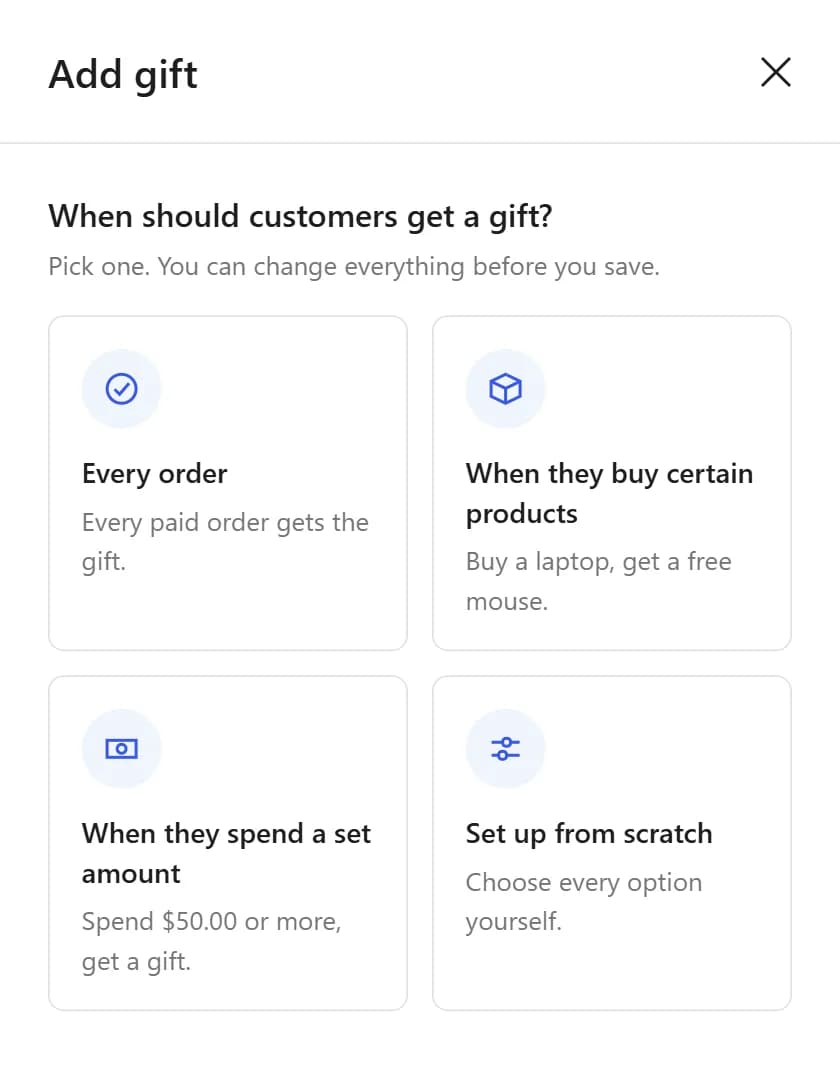
In the WordPress admin menu, click Gifts > Add New. The Add gift panel opens with one question: "When should customers get a gift?"
Pick when they get it
Click "Every order", so every paid order gets the gift. If small orders can't carry the cost, click "When they spend a set amount" instead, and type a "Minimum order amount", for example 50.
Pick what they get
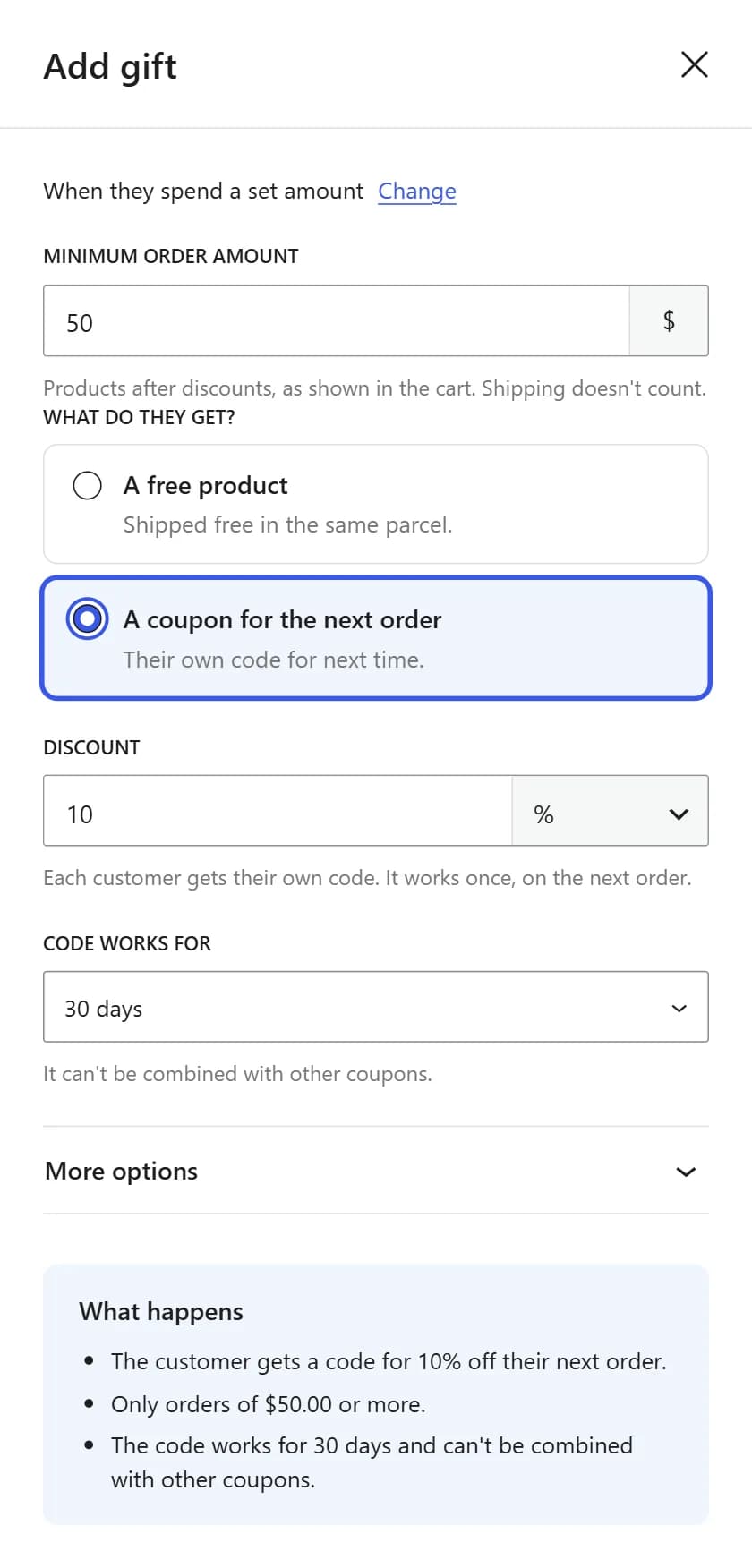
Under "What do they get?", pick "A free product" and search for your gift product. Or pick "A coupon for the next order". The discount then fills in at 10%, and "Code works for" is already 30 days.
Optional: thank new customers only
Open "More options". Under "How often", pick "A customer's first order only". Customers who ordered from you before won't get it.
Save the gift
Read the "What happens" box, then click Save gift. The gift is on as soon as you save it. It counts only for orders placed after that, so save it before Black Friday.
Test it with one order
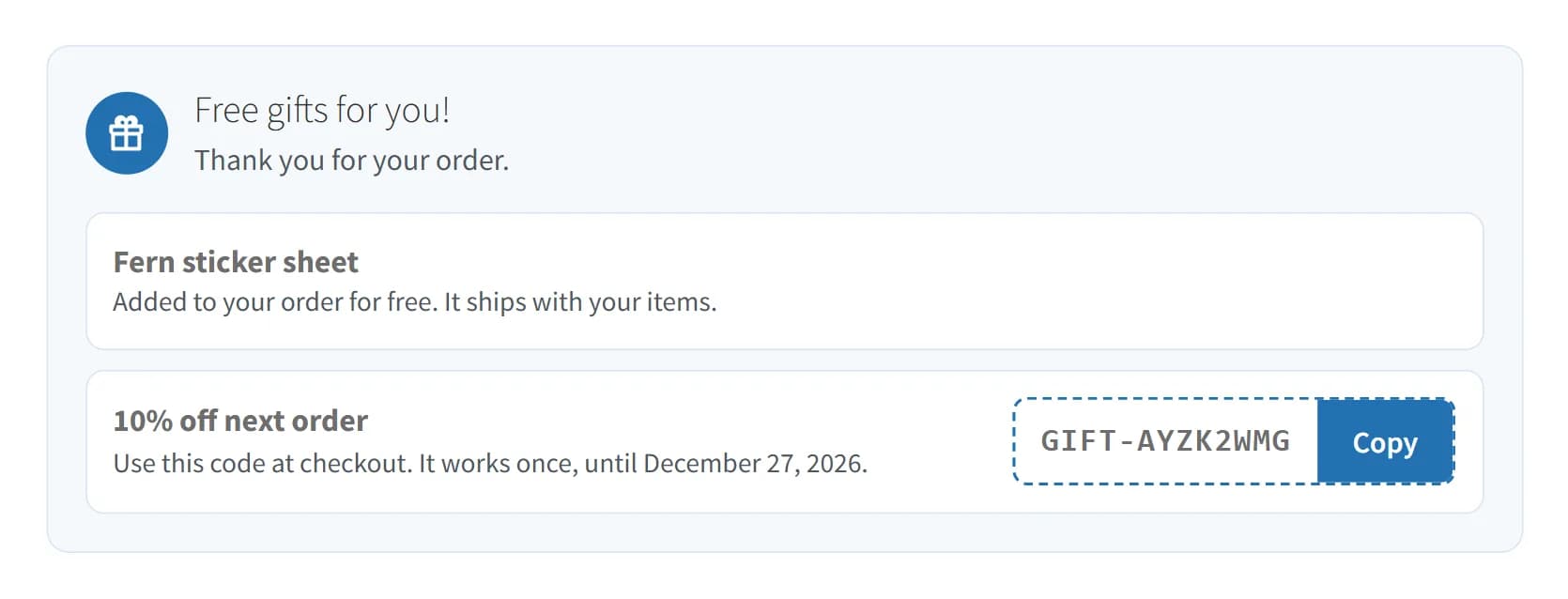
Place a small order yourself, after you save the gift. Look for the gift box on the thank you page. Then cancel the test order.
Turn it off after Cyber Monday
Wait until the sale's orders are paid, and its cash on delivery orders are Completed. Then go to Gifts > All Gifts and click the switch on the gift's row. Nothing turns it off for you.
When should customers get the gift?
For a Black Friday thank-you, pick "Every order". Every paid order then gets the gift, small or big.
To skip small orders, pick "When they spend a set amount" and type a "Minimum order amount", like Good Ideas Studio's $50.00. It counts the products after discounts, as the cart shows them, and leaves out shipping.
To pick your number, read how much a customer should spend to get a free gift.
The other two cards are for other jobs. "When they buy certain products" is for gifts like "Buy a laptop, get a free mouse." "Set up from scratch" shows every option at once.
A free product or a coupon?
Either one works: a small product that goes with what you sell, or 10% off the next order for 30 days.
A free product is added to the order at $0.00 and ships in the same parcel. Priya's Fern sticker sheet is small, light and goes with the Fern print she bought.
A coupon for the next order gives each customer their own code. It works once, only with their email address, and can't be combined with other coupons.
Keep the 30 days. You can pick 14, 60 or 90 days, or "No end date". But a code with no end date gives no reason to come back soon.
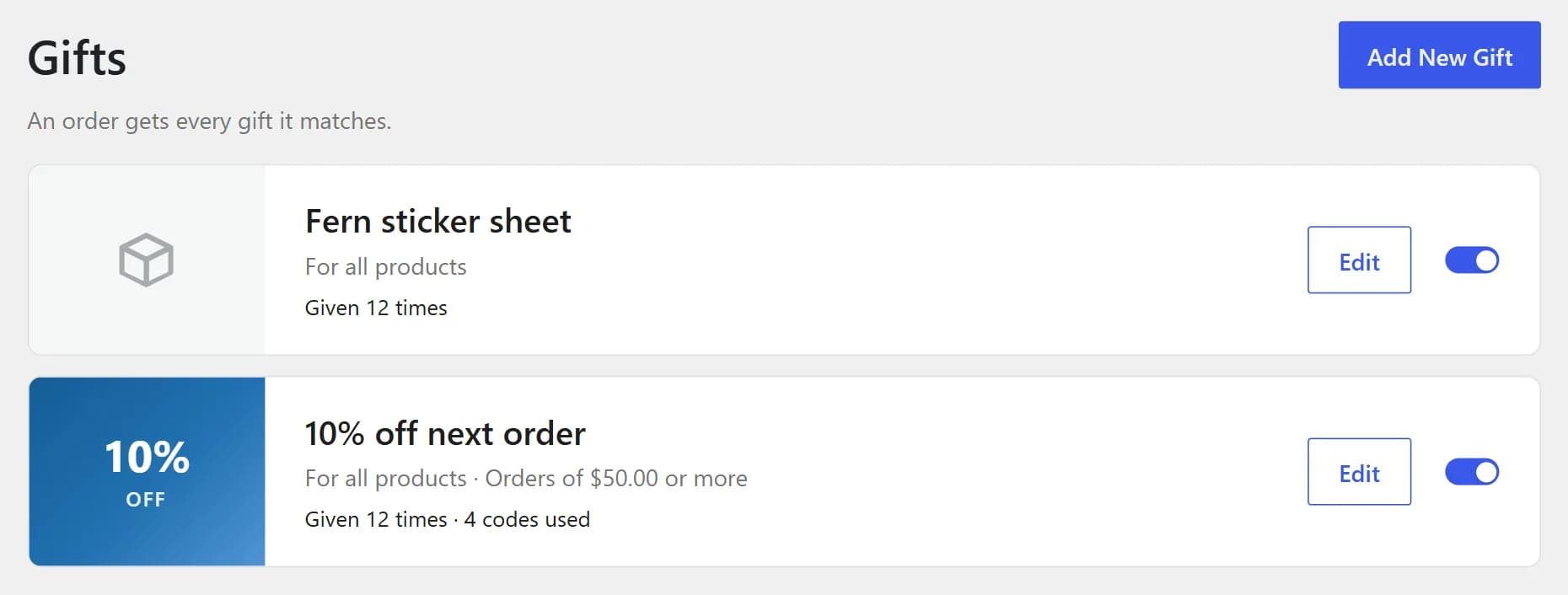
You can also give both, as Good Ideas Studio does. An order gets every gift it matches, so Priya's $182.00 order got the sticker sheet and the coupon.
To spend less, use step 5 and thank new customers only. It puts the gift in front of people who don't know your store yet.
How do you test the gift?
Place one order yourself after you save the gift, then look at the thank you page. You should see a box called "A free gift for you!", or "Free gifts for you!" with two gifts.
If you picked "A customer's first order only", test with an email address that has never ordered from you.
When the gift shows depends on how the order is paid:
- Paid online, for example by card. The order usually goes straight to Processing, so the gift shows right away.
- Direct bank transfer or Check payments. The order waits On hold. The gift is added when you mark it Processing in WooCommerce > Orders.
- Cash on delivery. The free product shows on the thank you page. A coupon waits until you mark the order Completed, after the customer pays. Our COD guide explains why.
Customers also see the gift in their order email, and on the order's page in My Account.
No gift box? Open the order in WooCommerce > Orders and read the order notes. The plugin adds a note for each gift it gives, and for some it can't give, like one that's out of stock.
When you're done, cancel the test order. The plugin then removes the unused gift coupon.
When should you turn the gift off?
After Cyber Monday, once the sale's orders are paid. The plugin has no start or end date, so it keeps giving gifts until you stop it.
Go to Gifts > All Gifts and click the switch on the gift's row. The gift stays in the list, so you can turn it on again next year.
Set a reminder now for the week after Cyber Monday. Without one, the gift goes to every December order too.
What the plugin doesn't do
It doesn't touch the cart or checkout, and it doesn't start or stop on a date. A few more things it won't do:
- Let customers choose their gift. You pick it.
- Give more for more items. One mug or three, the order gets the gift once.
- Take the gift back on a partial refund. If you refund one item, the gift stays with the order.
- Add shipping for the gift. It goes in the same parcel, so think about the extra weight.
Want a gift that shows in the cart instead? That's a cart gift plugin's job. Our post on why free gift plugins break your cart lists the tests to run first.
Questions store owners ask
What if my gift product runs out of stock?
The order is fine, but it doesn't get the gift. The plugin adds an order note that says the gift was out of stock. Each gift takes one from your stock, so check your count before the sale.
Can I change the gift during the sale?
Yes. Click Edit on its row in Gifts > All Gifts, make the change and click Save gift. Orders that already got the gift keep what they got. The change counts for gifts given after you save.
Will the plugin remind customers to use their coupon?
No. The code is on the thank you page, in the order email and on the order's page in My Account, but the plugin sends no reminder. To send one, set up a follow-up email in AutomateWoo or MailPoet. Send it a few days before the code ends, so there's still time to use it.
Can I use the same gift next Black Friday?
Yes. A gift you turn off stays in Gifts > All Gifts, so turn its switch on again before the next sale. If How often is set to "Once per customer", people who got it this year won't get it again. Add a new gift if you want them to.
Sources
We make Post-Purchase Gift, the plugin in this post.