Free gifts on cash on delivery orders, without losing money on refused parcels
Put the gift in the parcel, and send the coupon only after the customer pays.
By the Autora Lab team · Updated November 17, 2026 · 7 min read
Short answer
A parcel comes back with "Refused" on the label. It was a cash on delivery (COD) order with a free gift inside, and the customer never paid. Was the gift a mistake?
Not if it was a product. The sticker sheet is back in the box, on your packing table. A coupon code is different, because it doesn't come back in the box.
That worry stops a lot of stores in India and Southeast Asia from giving free gifts on COD orders. You don't have to skip the gift. Give each kind at the right moment: the product before the parcel ships, and the coupon after the cash is in.
Can you give a free gift on cash on delivery orders?
Yes. A small product can go in the parcel, and a coupon is safe if you make it only after the customer pays.
| Gift | When it's given | If the parcel is refused |
|---|---|---|
| A product, like a Fern sticker sheet | When the order reaches Processing, so it ships in the parcel | It comes back in the parcel |
| A coupon, like 10% off the next order | When you mark the order Completed, after the customer pays | It's never made |
So a refused parcel costs you what it always did: the shipping. The gift adds only a little weight to the trip.
How common is cash on delivery in India and Southeast Asia?
Very common: in India, between 45% and 65% of online orders are cash on delivery, depending on the source.
ET Prime Research put it at 60 to 65% of all online orders in India in 2024, as reported by Upstox. Fynd is an Indian retail software company. It doesn't say how many orders it counted, but it saw less on Black Friday. In its 2025 report, 45.2% of Black Friday orders were cash on delivery, down from 49.9% in 2024.
Fynd also counted the parcels that came back to the seller undelivered. On Black Friday 2025, that was 8.65% of COD orders, against 2.08% of prepaid orders, the ones paid online before shipping.
Southeast Asia uses less cash on delivery, but it's still common. EasySell, which sells a COD order form app for Shopify, says about 31% of online payments there were cash on delivery in 2024. It names no source, so take that as a rough guess.
45.2% of Black Friday orders in India were cash on delivery
Fynd, 2025
8.65% of those COD orders came back undelivered, against 2.08% of prepaid orders
Fynd, 2025
31% of online payments in Southeast Asia were cash on delivery in 2024
EasySell, 2026 (vendor estimate)
Now picture a coupon on each of those orders, given before payment. Your own return rate may be higher or lower than Fynd's. But at that rate, 100 COD orders, for example, would mean about 9 parcels back, and 9 working codes for people who never paid.
Why does WooCommerce mark COD orders Processing before payment?
Because Processing tells you to pack and ship, and with COD the customer pays only when the parcel arrives.
When a customer checks out with Cash on delivery, WooCommerce sets the order to Processing at once. It adds the note "Payment to be made upon delivery." If the order has a downloadable product, it goes to On hold instead.
With a card, Processing usually means the money is in. With COD, it means "ship it now, get paid later". A gift tool that treats Processing as paid gives the gift before anyone pays.
WooCommerce can't see the courier take the cash, so after delivery, you tell it. In WooCommerce > Orders, open the order, set Status to Completed and click Update. For many orders at once, select them in the list and choose "Change status to completed" from the bulk actions.
What happens to a COD order with a free gift, step by step
The product gift is added when the order reaches Processing. The coupon is made when you mark the order Completed.
You don't switch anything on for this. Post-Purchase Gift sees WooCommerce's Cash on delivery payment method and holds the coupon by itself. To add the gift in the first place, follow our Black Friday thank-you gift guide.
Say Priya Shah pays for her Black Friday order #1043, $182.00, with cash on delivery. Good Ideas Studio gives two gifts: a Fern sticker sheet, and 10% off the next order with a code that works for 30 days.
On the thank you page, Priya sees a box that says "A free gift for you!" It shows the sticker sheet, "Added to your order for free. It ships with your items." Her order email shows the same box, and nothing about a coupon yet.
After the courier collects the cash, you mark the order Completed. The email WooCommerce sends then shows both gifts, with her code and the date to "Use it by". The order's page in My Account shows them too.
Her 30 days start that day, not on Black Friday. So she gets the full 30 days, counted from the day she paid.
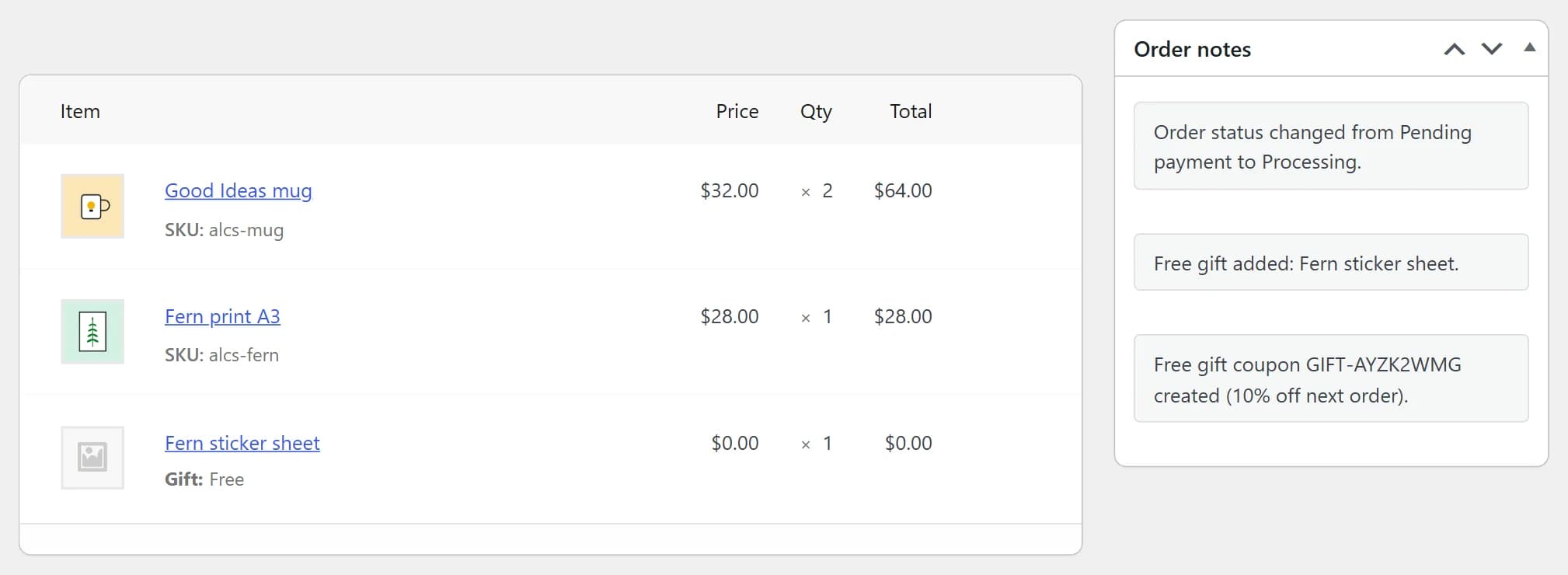
In the order, you see the sticker sheet at $0.00 with "Gift: Free", and the note "Free gift added: Fern sticker sheet." There's no note about the coupon until you mark the order Completed. That's normal, because the note comes when the coupon is made.
What should you do when a COD parcel is refused?
Mark the order Cancelled. The sticker sheet is already back in the parcel, and the coupon was never made.
Cancelled tells WooCommerce to put the stock back. If you track stock, every item goes back, the sticker sheet too. There's no coupon to delete, so the gift leaves nothing behind.
Don't leave a refused order at Processing. WooCommerce still counts it as paid, so the plugin does too. If Priya orders again, a gift set to "A customer's first order only" or "Once per customer" would skip the order she really pays for.
There's a second risk. If someone marks that old order Completed by mistake, its waiting coupon is made for an order nobody paid for.
When can you turn the gift off if you take COD?
Only after the sale's COD orders are Completed. A gift that's off doesn't make the coupons those orders are still waiting for.
The plugin gives only gifts that are on, and it checks again when you mark a COD order Completed. If the coupon's gift is off or deleted by then, no coupon is made. No order note tells you.
Gifts have no end date, so you turn them off yourself. When the last Black Friday parcels are delivered and Completed, go to Gifts > All Gifts and click the switch on the gift's row.
What's still up to you on COD orders
The plugin can't see the courier or your shipping, so a few jobs stay with you:
- Tell WooCommerce when the cash is in. Mark the order Completed, or Cancelled if the parcel comes back.
- Check which COD method you use. The plugin knows only WooCommerce's own Cash on delivery method, and the test below shows which one your store uses.
- Keep the gift light. The plugin adds no shipping for it, and it rides in the same parcel.
- Decide about part returns. If Priya sends back the print but keeps the mug, she keeps the sticker sheet and her code. Our post on free gift rules and returns covers this.
Test it with one COD order
One test order shows you both moments before a real customer sees them. After you save the gift:
- Place a small order and pay with Cash on delivery. The thank you page should show the product gift, and no code yet.
- In WooCommerce > Orders, open the order. Look for the "Free gift added" note.
- Set Status to Completed and click Update. A "Free gift coupon" note appears, and the email you get shows the code.
- Set Status to Cancelled and click Update. The plugin removes the unused code.
If the code shows up right after checkout, your COD payments likely run through another plugin. A developer can tell Post-Purchase Gift when those orders are paid, with the fgap_order_is_paid filter.
Questions store owners ask
What if a cash on delivery order has a downloadable product?
WooCommerce sets it to On hold, not Processing, and the plugin gives nothing at On hold. When you mark it Processing, the product gift is added, and the coupon still waits for Completed. If you go straight to Completed, the product gift is skipped with an order note, but the coupon is made.
Should I mark a refused COD order Failed instead of Cancelled?
Use Cancelled. WooCommerce puts the stock back when an order is Cancelled. It does the same for Failed orders only from WooCommerce 11.0, and the plugin works with WooCommerce 8.0 and newer. Either way, no coupon was made, so there's nothing else to undo.
Can a customer use a gift code on another COD order?
Yes. The code works once, with any payment method. If that parcel is refused too, mark the order Cancelled, and WooCommerce gives the use back. An order that used a gift code doesn't earn a new one, so codes can't loop.
Can I give gifts only to customers who pay online?
Not from the gift screen, because gifts have no payment method setting. A developer can add that rule with the fgap_gift_matches_order filter. You may not need it, though: on COD orders, the coupon already waits until the customer pays.
Sources
We make Post-Purchase Gift, the plugin in this post.